PROOF Workbench Troubleshooting
PROOF Workbench aims to make it easier for researchers to get computing and analysis work done on the Fred Hutch cluster, and the PROOF system itself is also run on the Fred Hutch Cluster. This means that PROOF Workbench benefits from the advantages of the cluster, but also shares some of the cluster’s boundaries and limitations.
Get Live Help
PROOF is a collaborative partnership between Scientific Computing and the Office of the Chief Data Officer (OCDO), and we are eager to help PROOF users with troubleshooting. You can get live help with PROOF through several avenues:
- If you need help debugging a workflow, schedule a Research Computing Data House Call.
- If you are having trouble using PROOF Workbench, or you want to provide feedback or report an issue, schedule a Code & Software Data House Call.
- As us anything in the PROOF Users Group on Teams: PROOF User Group.
- If you are already a member of the FH-Data Slack, ask us anything in the
#workflow-managerschannel. If you are not yet a member, you are welcome to join if you have a Fred Hutch email address. - Email the PROOF team at wilds@fredhutch.org.
Common PROOF Server Issues
A common point of failure for PROOF is your PROOF server. The Home page of PROOF Workbench allows you to start, stop, and see the status of your PROOF server. There are two healthy states for this page. The first state is when you do not have a PROOF server running. You should see that you can connect to the PROOF API, which PROOF Workbench uses to launch a PROOF Server on the Fred Hutch cluster, and that the API is reporting to PROOF Workbench that it is ready to start a PROOF server:
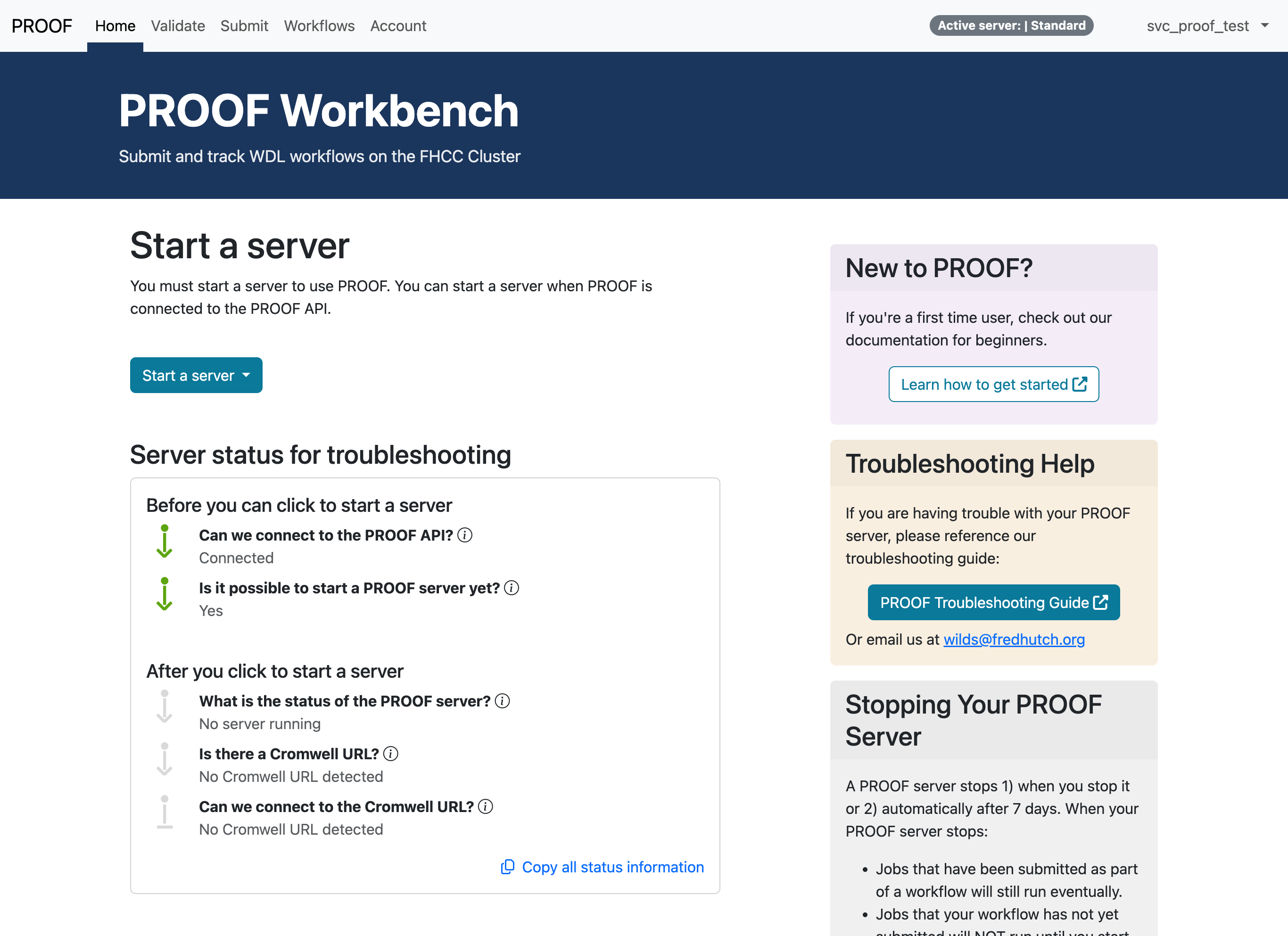
If you do not have a PROOF server running and the Home page does not look like the image above, please contact us via any of the methods mentioned above.
Once you start a PROOF server, each of the status indicators on the Home page will either be green, meaning they are up and running, yellow, meaning they are starting up, or gray, meaning they have not yet started. It may take several minutes for each of these steps to start up. Once all the status indicators are green, your PROOF server has started:
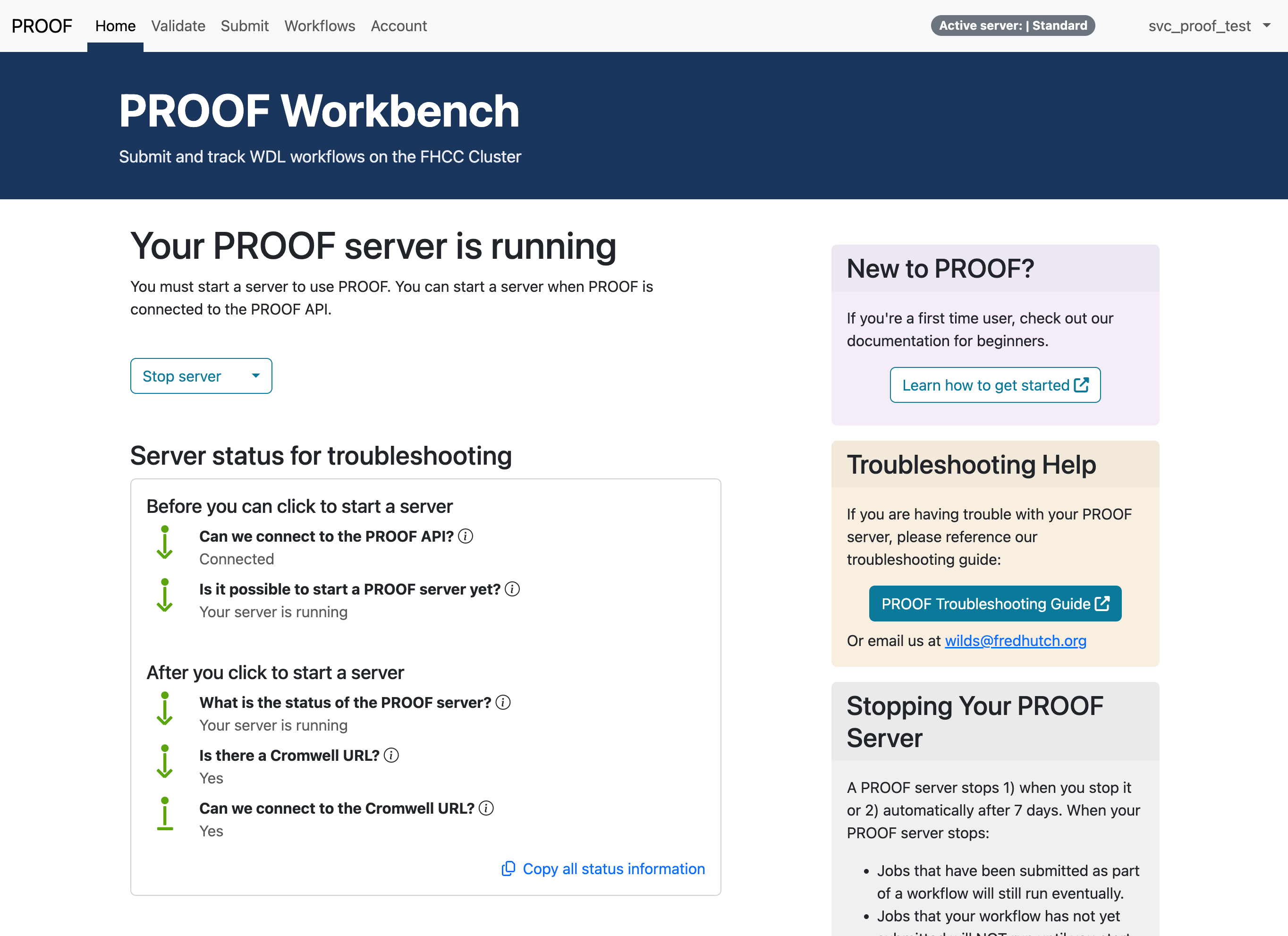
If any of the status indicators remain yellow or gray for a long time, please contact us via any of the methods mentioned above. As you can see in the image above, below the status indicators, you can click Copy all status information. Please send us that information when you contact us.
Is this thing on? Make sure your PROOF server is running
Many of the core features of PROOF Workbench, including WDL validation, submitting a workflow, and viewing running and past workflows depends on making sure that your PROOF server is running. You can view the current status of your server on the Home page, and as discussed above, all status indicators should been green when your PROOF server is running.
Turn it off and turn it back on again: Restarting your PROOF Server
Some of the most common issues with PROOF can be solved by stopping a running PROOF server, and then starting a new one. To stop your PROOF server, go to the Home page and click the Stop server button.
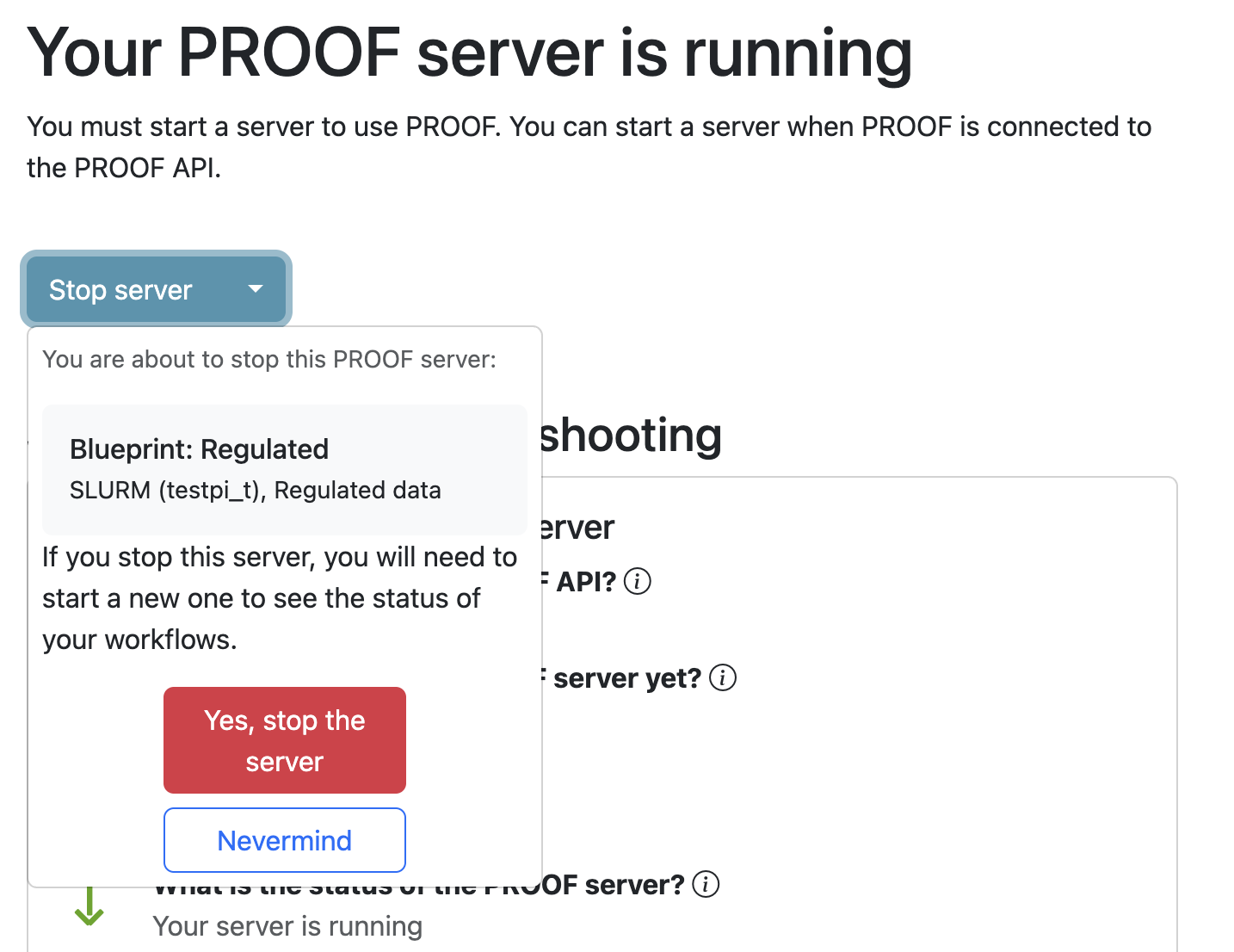
Make note of whether or not you are using a blueprint before you stop your server. Click Yes, stop the server to confirm. Once your PROOF server has stopped, you will be able to click the Start a server button. If you were using a blueprint before stopping your server, make sure to use that blueprint.
Diagnosing a failing workflow
Workflows can fail for many reasons, and PROOF tries to surface as much information as possible to help you diagnose a failing workflow. Pinning down the exact reason a workflow failed can be difficult for anyone, but it is easier when we work together. For that reason we encourage you to get in touch with via any of the methods mentioned at the top of this page, especially via a Research Computing Data House Call.
Each workflow that you submit through PROOF should appear on the Workflows page. When you click on a workflow, you will see a series of tabs, including the Jobs tab. Click on the Jobs tab to view all of the jobs that we a part of that workflow. Failed jobs will be highlighted in red.
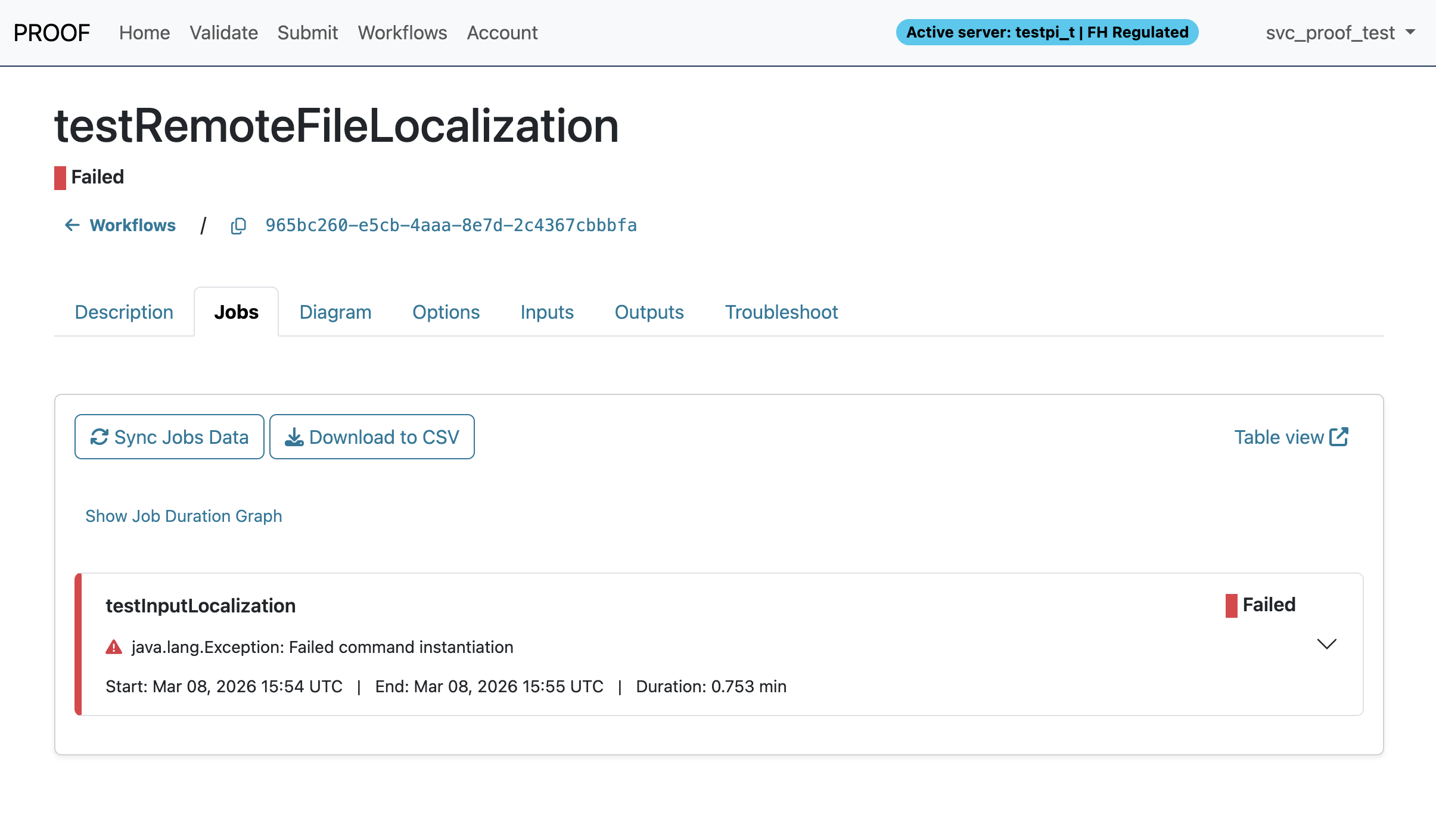
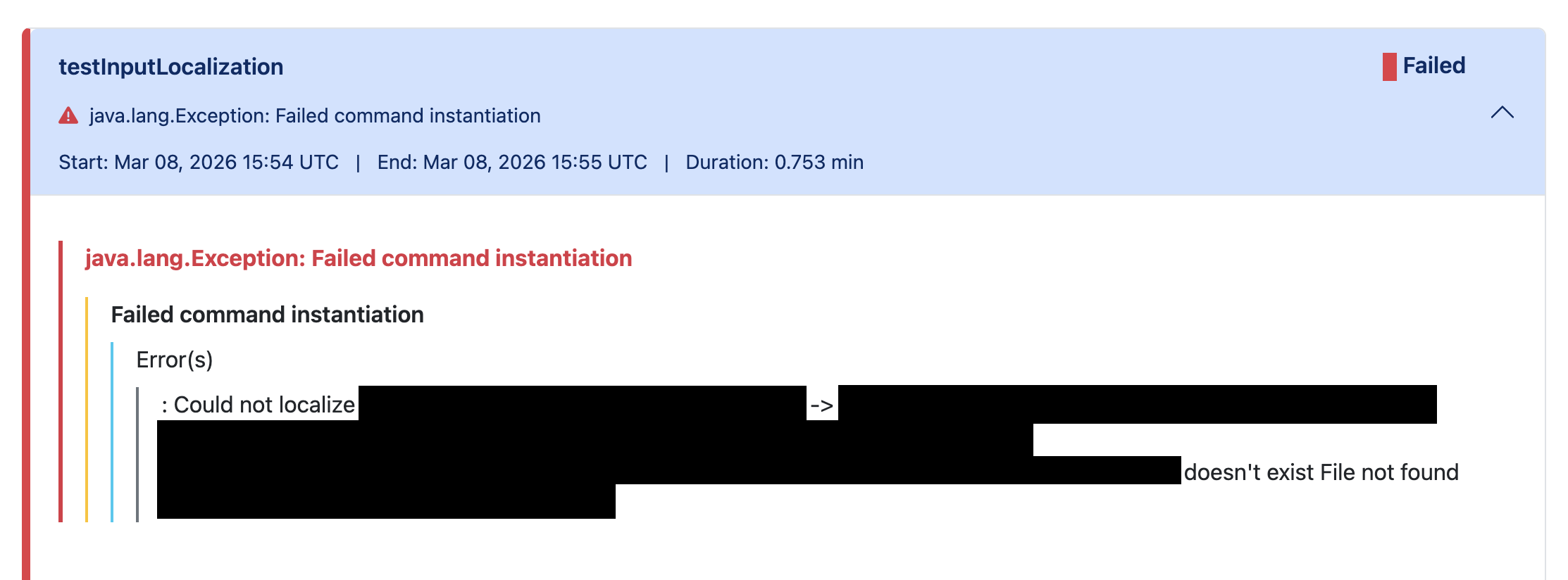
Clicking on an individual job will display error messages captured by PROOF that may help you diagnose why the job failed.
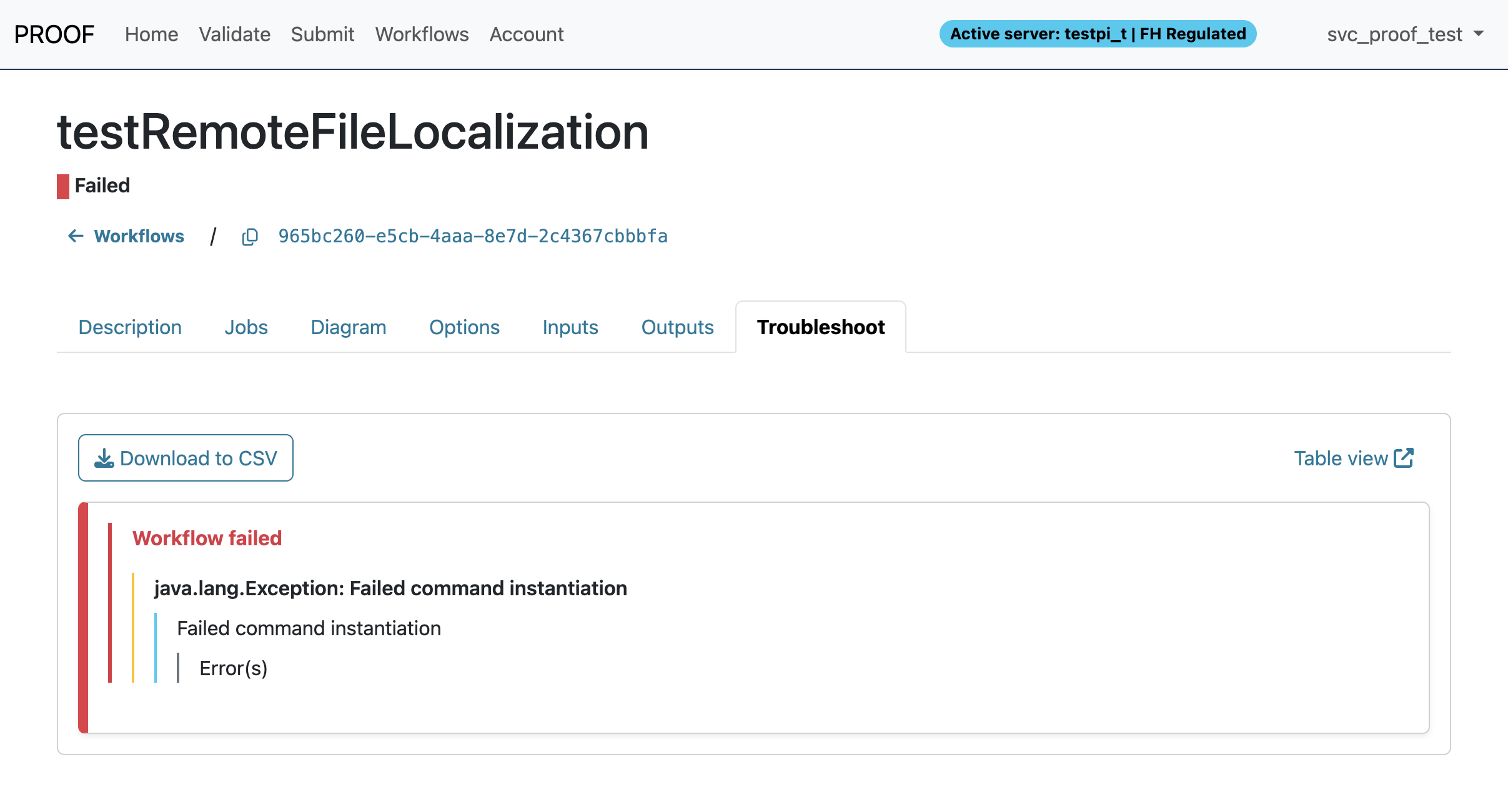
PROOF also surfaces errors at the level of the workflow overall, which you can see in the Troubleshoot tab.
It is also wise to check the workflow logs for more granular debugging. You can find the path to your workflow log directory on the cluster at the bottom of the Home page under Directories and URLs.
Other resources
- Check out the PROOF Legacy troubleshooting guide.
- Learn more about PROOF.